- January 09, 2026
How to Create an AI Podcast with Gemini for Free: Step-by-Step Guide
- October 26, 2026
- in Podcasts
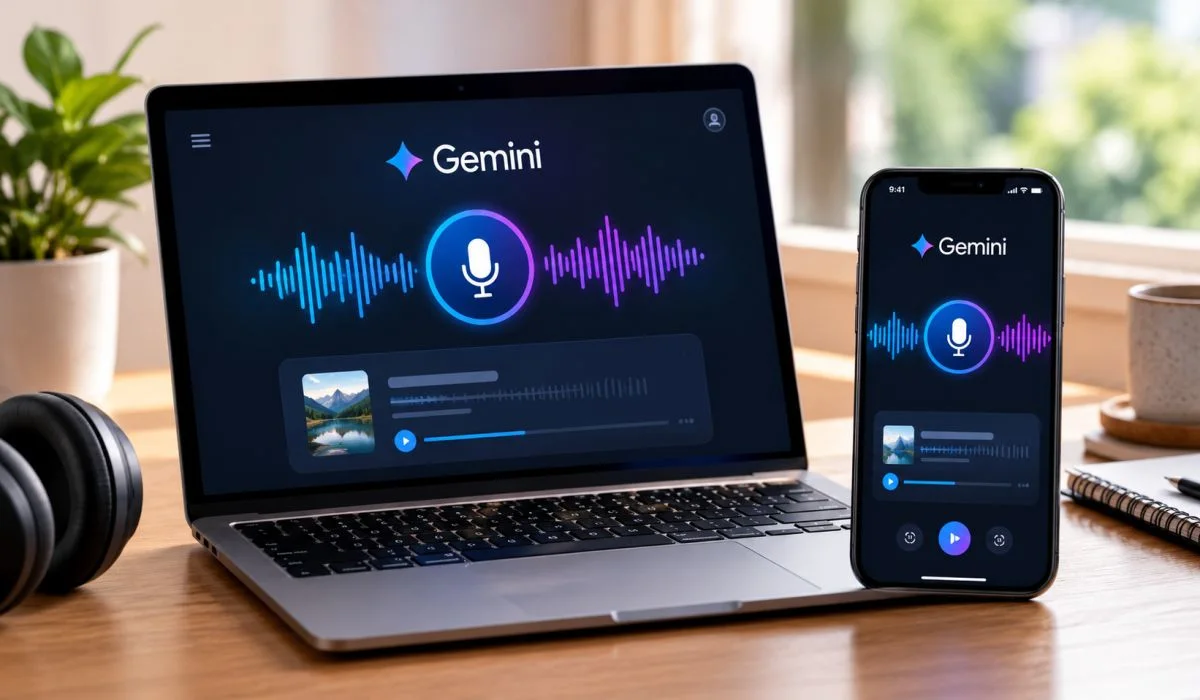
Creating a podcast used to mean buying a microphone, finding a quiet room, and editing for hours. Gemini changes that. You can turn a document, a report, or even a slide deck into a podcast-style conversation in minutes. The tool is built right into the Gemini app. It is called Audio Overview. You upload your source. You ask for a summary. Gemini generates a two-voice conversation you can listen to and download.
Learning how to create an AI podcast with Gemini takes just a few minutes. No recording equipment, No editing skills, No cost. This guide shows you exactly how to do it, step by step. Read on and start creating.
What You Need Before You Start?
The feature is available on the Gemini web app and the mobile app. You need to be signed in. It is not available to users under 18 .
You also need a source. The Audio Overview works from files you upload. You can use documents, slides, NotebookLM notebooks, or Deep Research reports . If you have a PDF, a slide deck, or a text file, you are ready.
Read More: How to Start an AI Technology Podcast for Beginners in 2026
How to Create an AI Podcast with Gemini Free?
The free version of Gemini includes this feature. You do not need a paid subscription.
Step 1: Open Gemini
Go to gemini.google.com on your computer. Or open the Gemini app on your phone or tablet .
Step 2: Upload Your File
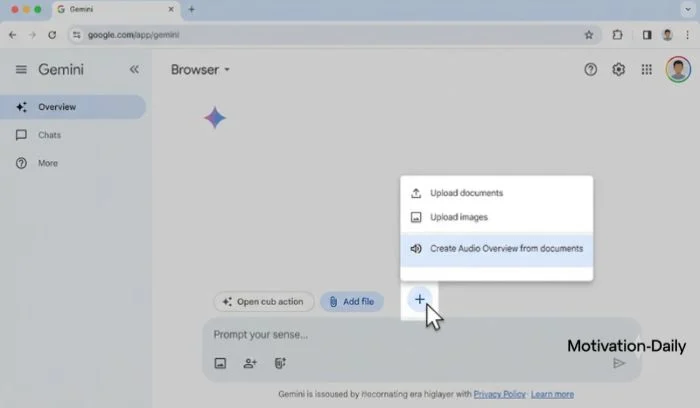
Click or tap the "Add file" icon. Select the document or slide deck you want to turn into a podcast. You can also use a NotebookLM notebook or a Deep Research report as your source .
Step 3: Ask for the Audio Overview
In the prompt box, type a clear request. Something like: "Create an audio overview of this document." Or: "Turn this into a podcast conversation." Gemini understands what you want .
Step 4: Wait for It to Generate
Generation takes about 3 to 5 minutes. You do not have to sit and watch. You can leave the chat and start a new one. Gemini will notify you when it is ready .
Step 5: Play, Download, or Share
Once it is done, you will see a notification. Open the chat with the Audio Overview. Tap the play button to listen. You can also download the audio file. Or share a link using the g.co/gemini/share format .
The Gemini Podcast Prompt: Getting Better Results
The prompt you use shapes the podcast. A vague request gives a generic result. A specific prompt gives you something worth listening to.
Here is what works.
Be Clear About the Format
Tell Gemini you want a podcast-style conversation. "Create a two-person podcast discussing this document" is better than "summarize this." The two-voice format is what makes it feel like a podcast .
Set the Tone
Do you want it serious? Casual? Funny? Add that to the prompt. "Make it a casual conversation between two experts" sets a different tone than "Create a formal briefing."
Focus the Content
If your document is long, tell Gemini what to focus on. "Focus on the key findings in section three" gives a tighter result than "cover everything."
Example Prompts
- "Create a podcast-style conversation about this report. Keep it casual and easy to understand."
- "Turn this document into a two-voice discussion. Focus on the main arguments and skip the technical details."
- "Make an audio overview of these slides. The tone should be friendly and informative."
How to Create an AI Podcast with Gemini for Free: Using AI Studio?
There is another free route. Google AI Studio lets you generate podcast scripts and audio. It gives you more control than the Gemini app.
Generate the Script
Open Google AI Studio. Type a prompt that describes the podcast you want. For example: "Write a 1,000-word podcast script about [topic]. Make it a conversation between two hosts." You can ask for a single-host or two-host format .
Convert to Speech
AI Studio has a "Generate native speech" feature. Paste your script into it. Choose a voice. It converts the text to natural-sounding audio. You can download the audio file .
This method takes more steps. But it gives you a script you can edit before recording. That is useful if you want to add your own voice or change the flow.
You May Also Read: Best AI Podcasts for Beginners Free, Spotify and YouTube

AI Podcast Generator: Other Tools That Work with Gemini
The Gemini app is the easiest option. But there are other tools built on Gemini that give you more features.
gen-podcast
This is an open-source Python tool. It extracts text from web pages, YouTube videos, or PDFs. Then it uses Gemini to generate a multi-role dialogue script. It converts the script to speech using Edge TTS. It can also generate cover art . You need to set up API keys and run it from the command line. It is for people who are comfortable with code.
isa9000
This tool turns documents into short, fact-checked podcasts. It runs on Google Cloud using the Gemini API. It plans episodes, writes scripts, fact-checks claims, and records narration with Gemini TTS . It is more advanced and aimed at organizations.
For most people, the Gemini app is enough. The other tools are for specific needs.
FAQs
1. How do I create an AI podcast with Gemini free?
Open the Gemini app. Upload a document, slide deck, or report. Type a prompt asking for an audio overview or podcast conversation. Wait 3 to 5 minutes. Play, download, or share the result. The feature is free in the Gemini app .
2. What is the Gemini podcast feature called?
It is called Audio Overview. It creates podcast-style conversations from your files .
3. Can I control the voices in the Gemini podcast?
The Audio Overview uses a standard two-voice format. You cannot pick specific voices in the Gemini app. For more control, use Google AI Studio or a tool like gen-podcast .
4. How long does it take to generate a podcast?
About 3 to 5 minutes. You can leave the chat while it works. Gemini will notify you when it is ready .
5. What files can I use as a source?
Documents, slides, NotebookLM notebooks, and Deep Research reports. If you can upload it to Gemini, you can likely turn it into an Audio Overview .
6. Can I download the podcast audio?
Yes. Open the chat with the Audio Overview. Use the download option in the player. You can save the audio file to your device .
7. What is a good Gemini podcast prompt?
Be specific. Ask for a two-person conversation. Set the tone. Focus the content. For example: "Create a casual podcast conversation about this document. Focus on the main findings. Keep it easy to understand."
8. Is there an AI podcast generator that uses Gemini for free?
The Gemini app itself is the free option. Google AI Studio is also free and gives you more control. Open-source tools like gen-podcast use Gemini but require setup and API keys .
you may also like


- January 09, 2026
Self Improvement Motivation: Simple Steps to Change Your Life...

- December 24, 2025
AI Tools for Entrepreneurs: Simple Tools to Save Time and...

- December 24, 2025
What are the best startup marketing strategies for 2026?...

- December 09, 2025
8 Ways to Be Successful in Life | Simple Success...

- November 17, 2025